Alerts and Escalation
Ward creates alerts when situations require attention and escalates them until acknowledged.
Alert Creation
Alerts are created automatically when:
| Trigger | Alert Type |
|---|---|
| Observation past due | Observation Overdue |
| Vital outside range | Vital Critical |
| 1:1 observation gap | 1:1 Gap |
| Patient leaves authorized area | Elopement |
| Geofence crossed | Geofence Violation |
| Wristband battery below 20% | Battery Low |
| Wristband battery below 10% | Battery Critical |
| Wristband or hub not detected | Device Offline |
| Patient's wristband not detected by any gateway | Patient Not Detected |
Viewing Alerts
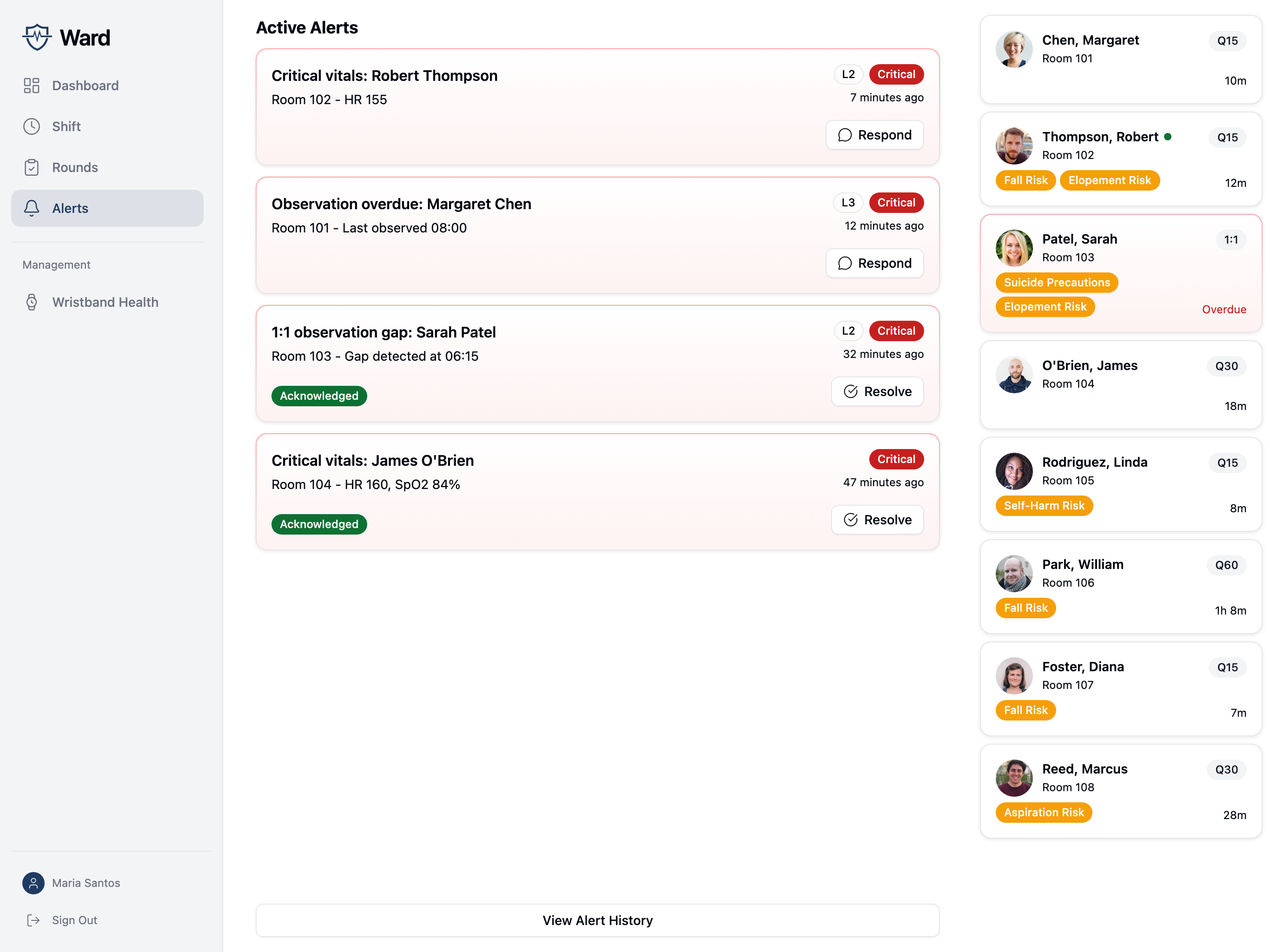
Navigate to the Alerts tab to see:
- Active alerts requiring attention
- Alert priority (Critical, High, Medium, Low)
- Patient name and alert type
- Time since alert created
- Current escalation level
Tap an alert to view details and respond.
Alert Details
The alert detail screen shows:
- Patient information - Name, room, observation level
- Alert type - What triggered the alert
- Context - Relevant details (e.g., which vital, time since last observation)
- Escalation history - When it escalated and to whom
- Actions - Response options
Responding to Alerts
Acknowledge
Tap Acknowledge and select an action:
| Action | Description |
|---|---|
| Responding now | You're addressing the situation |
| Delegate | Assign to another staff member |
| Already resolved | Situation was already handled |
After acknowledging, the alert stops escalating but remains open until resolved.
Resolve
To close the alert, tap Resolve:
- Select the action taken
- Add required notes (for safety events)
- Tap Confirm Resolution
Safety events (vital critical, 1:1 gap) require notes documenting what was done.
Delegate
If you can't respond, delegate to another staff member:
- Tap Delegate
- Select a staff member from the list
- Add optional notes
- Confirm
The delegated staff member receives a notification.
Escalation
Unacknowledged alerts escalate through levels:
| Level | Delay | Staff | Charge Nurse | Unit Manager | Director/Admin |
|---|---|---|---|---|---|
| 1 | Immediate | ✓ | |||
| 2 | +5 min | ✓ | ✓ | ||
| 3 | +10 min | ✓ | ✓ | ✓ | |
| 4 | +15 min | ✓ | ✓ | ✓ | ✓ |
Delays are configurable per unit.
Push Notifications
Alert notifications include the alert title (which typically includes the patient name) and a description with context like room number and timing. All notifications use high-priority delivery with sound.
Alert History
View resolved alerts:
- From Alerts tab, tap History
- Filter by:
- Date range
- Alert type
- Patient
- Priority
- Resolution status
Alert history supports compliance audits and incident review.
Priority Levels
| Priority | Behavior | Examples |
|---|---|---|
| Critical | Loud sound, vibration, persistent | Vital critical, 1:1 gap |
| High | Sound, vibration | Elopement, battery critical |
| Medium | Standard sound | Observation overdue, battery low, device offline |
| Low | Silent notification | Informational |